GroupContent
Explains the Contents button functionality in the Position component.
Overview
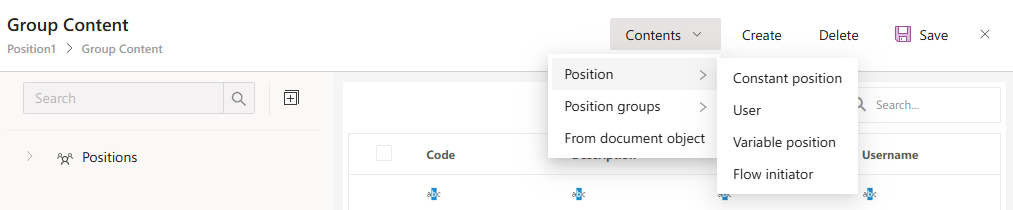
When the Contents button is clicked, a selection field opens to define the type of content to be added.
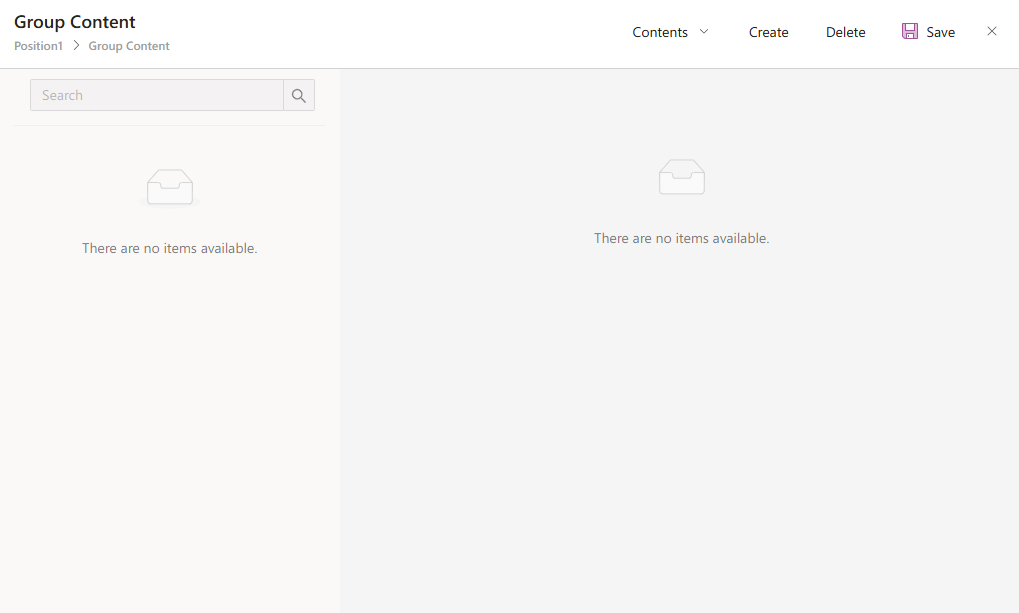
Available Options
The field provides three options:
Position→ Adds a specific position into the flow.Position Groups→ Allows assigning multiple positions grouped together.Object on the Document→ Selects an object that exists on the document itself.
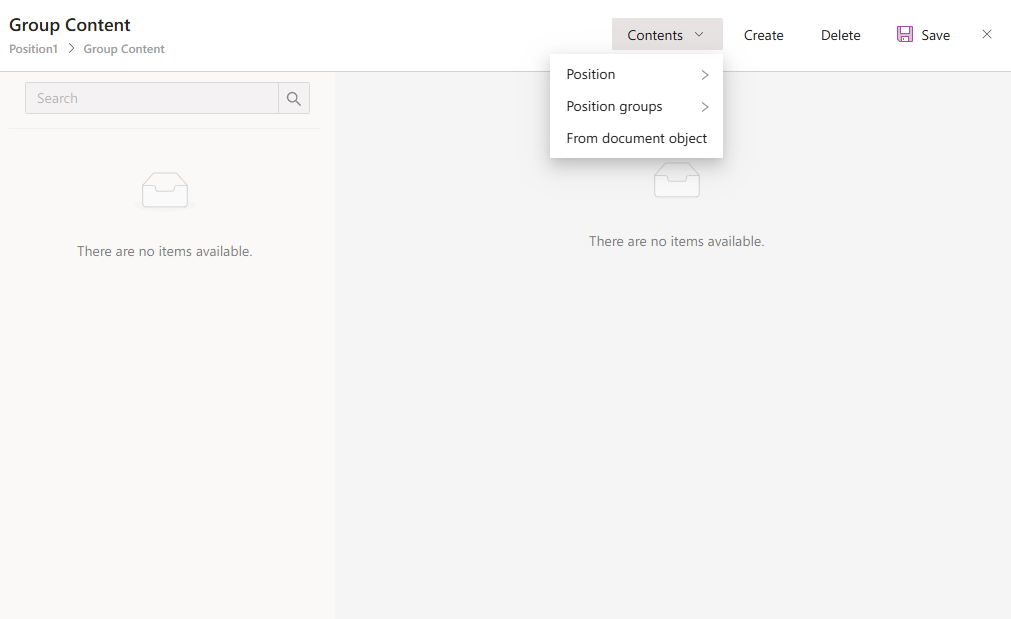
If Position is selected:
When the Position option is chosen, a new pop-up opens displaying the following options:
Fixed PositionUserVariable PositionFlow Starter
Fixed Position
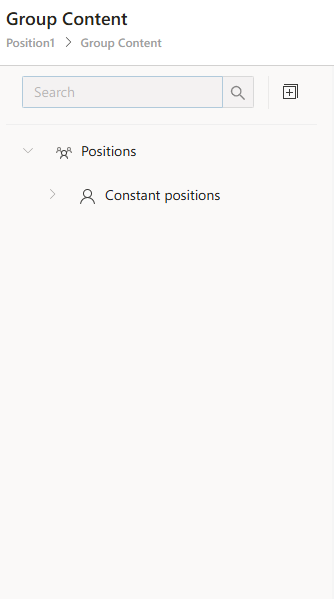
When Fixed Position is selected, all position records available in the system are listed.
- One or more positions can be selected from this list.
- When the
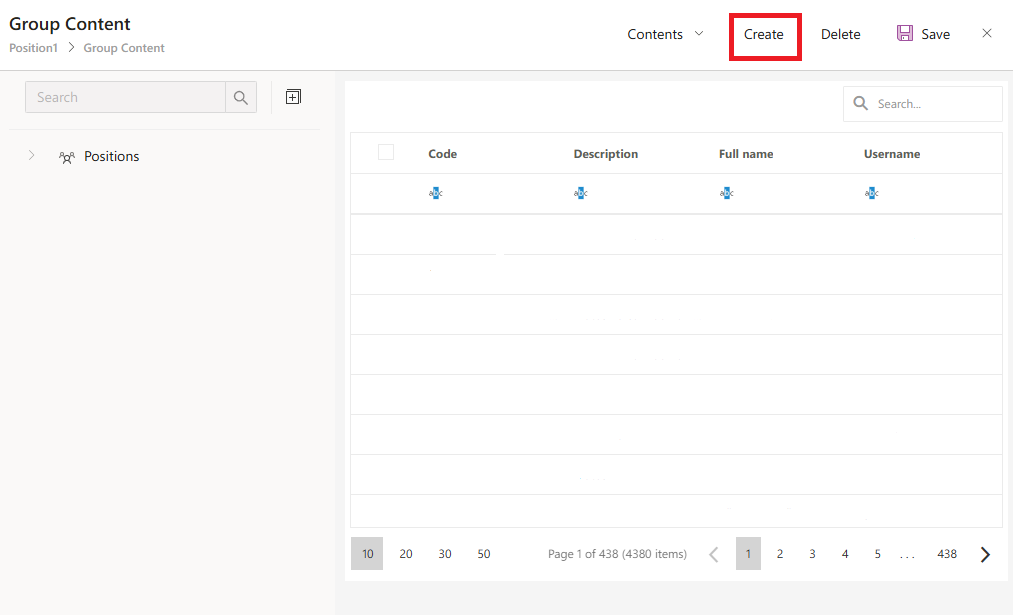
Createbutton is clicked, the selected positions are added into theMembersfield.
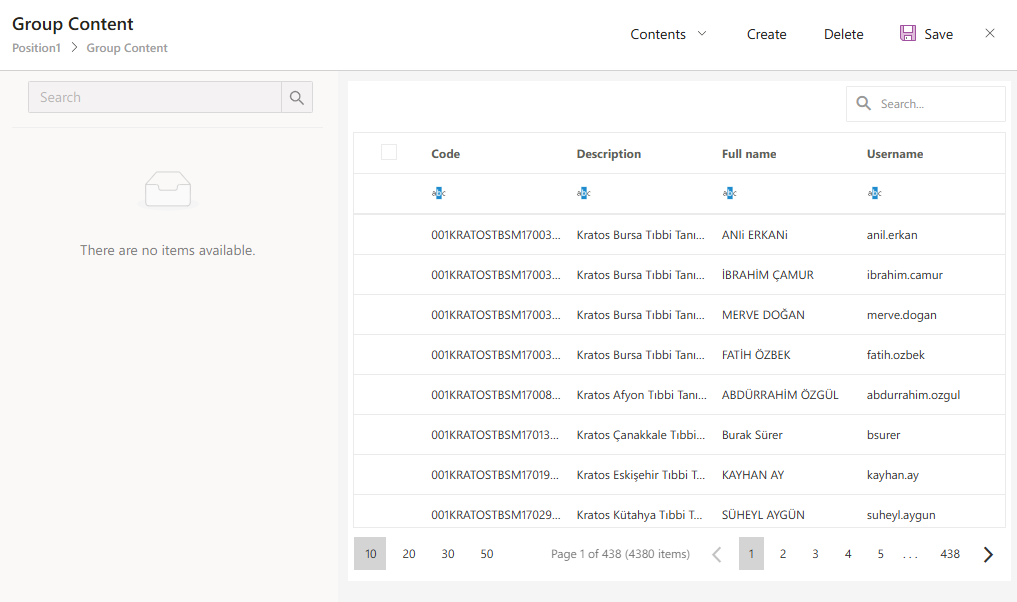
When the Variable Position option is selected, all Position components and the Flow Starter component from the flow design are listed.
Members Selection
In the Members field, select the Position components that represent the person or position in the flow to be added.
Create and Continue
- After clicking the
Createbutton, the selected items are added to theMembersfield. - The developer can click the
Contentsbutton again to continue filling the group content if needed.
If Position Groups is selected:
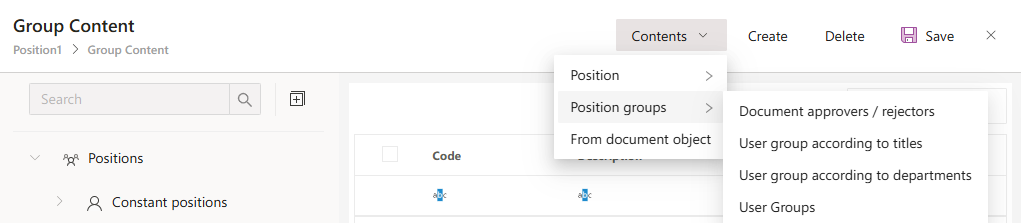
When the Position Groups option is chosen in the Members field, a new pop-up opens listing the following options:
Document Approvers/RejectorsUser Group by TitleUser Group by DepartmentUser Groups
Document Approvers/Rejectors
This option is used to add into the Members field those users who have taken action in the flow before it reached the Position component.
Additional Notes
The developer can click the Contents button again to continue filling the group content if needed.
User Group by Title
The User Group by Title option is used to add users with a specific title definition into the Members field.
When this option is selected from the Contents field, all title records defined in the system are displayed.
According to the selection made in the screenshot below, users with the title “Project Manager” will be added.
If desired, the developer can click the Contents button again to continue filling the group content.
User Group by Department
The User Group by Department option is used to add users who belong to a specific department.
When this option is selected from the Contents field, all department records defined in the system are displayed.
According to the selection made in the screenshot below, users from the “Product Management” department will be added to the Members field.
If desired, the developer can click the Contents button again to continue filling the group content.
User Groups
When the User Groups option is selected, the list of User Groups defined under the Human Resources section in the user interface is displayed.
When the developer selects a user group from this list, the users defined within that group are added to the Members field.
If new users are added to or removed from the relevant user group in the Human Resources section, the flow in the Members field where this user group was selected will reflect the most up-to-date version of the group, and the users within it will appear in the Forwarding list.
Object on the Document
When the Object on the Document option is selected, it is used to add the users or positions selected in a DataGrid component on the form into the Members field.
The addition can be done in two ways:
User-based→ The table component must have anID columncontaining the “Username (employee number)” information.Position-based→ The table component must have anID columncontaining the “Position ID” information.
When theObject on the Documentoption is selected from theContentsfield, the following fields will appear on the screen:
Properties and Descriptions
| Property | Description |
|---|---|
Document | Lists all Document components in the flow design. To access the data of a DataGrid on a form, select the Document component where that form is defined. |
Data type | Options: User and Position. - Select User if the records to be added to the Members field are user-based. - Select Position if they are position-based. |
Table / Details | Specifies which DataGrid component on the selected form (from the Document field) will provide the records to be added into the Members field. |
Field | Lists the columns of the DataGrid component. - If Data type = User, select the column containing the user IDs. - If Data type = Position, select the column containing the position IDs. |
Use Referred User As Actual Value | Defines whether the information of the user to whom the process is forwarded will be used in the flow when a Position component with Forwarding enabled is selected as the source (e.g., in Assignment components). |
| 00 |